Uploaded image for project: 'IGB'
  1. IGB
  2. IGBF-1215

investigate startup times of IGB when it is behind a firewall which blocks everything.

    Details

    • Story Points:
      1
    • Sprint:
      Summer 2018 Part 2

      Description

        Attachments

        1. application_popup.PNG
          29 kB
          Kiran Korey
        2. java_proxy_popup.PNG
          156 kB
          Kiran Korey

          Activity

          Hide
          ann.loraine Ann Loraine added a comment -

          suggestion:

          • set up some type of proxy on localhost to let you observe all http/s requests from IGB. Many of these can probably be removed.
          Show
          ann.loraine Ann Loraine added a comment - suggestion: set up some type of proxy on localhost to let you observe all http/s requests from IGB. Many of these can probably be removed.
          Hide
          kkorey Kiran Korey (Inactive) added a comment -

          After monitoring IGB startup times, the analysis is as follows:
          With an active internet connection, IGB takes approx 20 seconds to display the home screen.
          With all the outgoing rules blocked in the firewall, It takes on an average of 35 seconds to display the home screen.
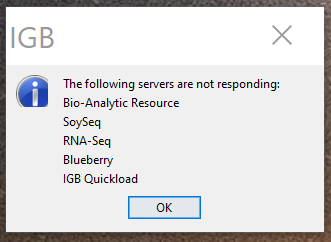
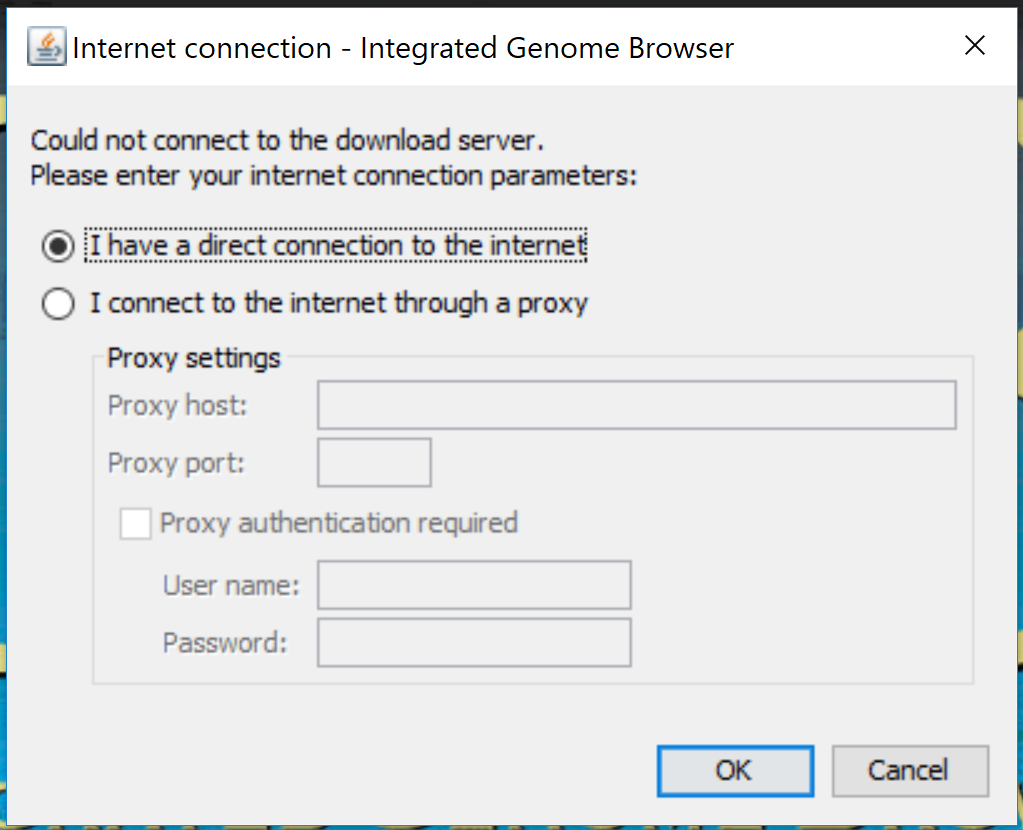
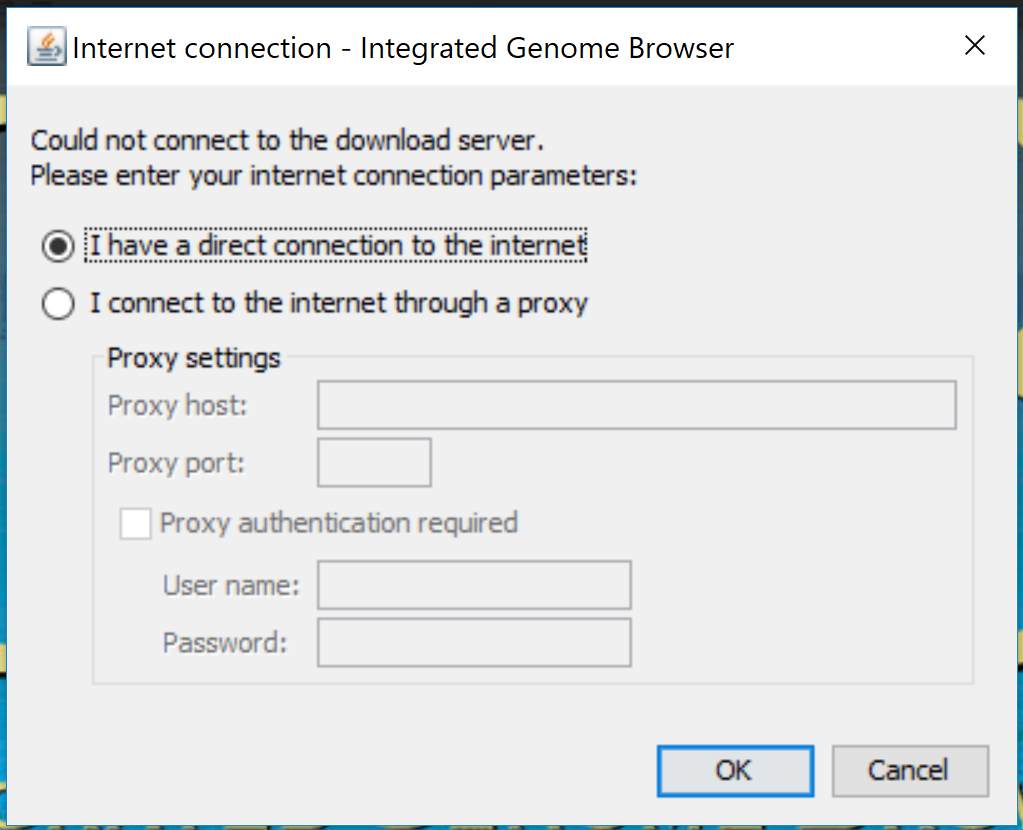
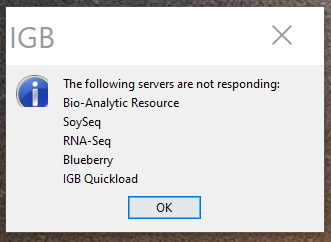
          Additionally, when it is not able to reach the servers, it shows two popups,
          1. Default Java popup asking for a proxy - java_proxy_popup.PNG
          2. Application popup indicating that it was not able to reach the servers - application_popup.PNG
          Show
          kkorey Kiran Korey (Inactive) added a comment - After monitoring IGB startup times, the analysis is as follows: With an active internet connection, IGB takes approx 20 seconds to display the home screen. With all the outgoing rules blocked in the firewall, It takes on an average of 35 seconds to display the home screen. Additionally, when it is not able to reach the servers, it shows two popups, 1. Default Java popup asking for a proxy - java_proxy_popup.PNG 2. Application popup indicating that it was not able to reach the servers - application_popup.PNG
          Hide
          ann.loraine Ann Loraine added a comment -

          Next step:

          • Add comment describe tools and settings used (if any) to create condition "with all the outgoing rules blocked in the firewall". Describe in enough detail to allow a beginning developer to repeat.
          Show
          ann.loraine Ann Loraine added a comment - Next step: Add comment describe tools and settings used (if any) to create condition "with all the outgoing rules blocked in the firewall". Describe in enough detail to allow a beginning developer to repeat.
          Hide
          kkorey Kiran Korey (Inactive) added a comment -

          I used windows defender firewall to block outgoing requests, here are steps to do the same.

          1. Press "Windows" key and search for Windows Defender Firewall and select it to open.
          2. Click on Advanced Settings in the left pane.
          3. "Windows Firewall defender with Advanced security" opens, now select "Outbound rules" on the left menu.
          4. Click on "New Rule..." in the actions menu on the right pane, which opens the "New Outbound Rule Wizard".
          5. Select "Program" radio button and click Next.
          6. Select "All Programs" and click Next.
          7. Select "Block the connection" and click Next.
          8. Select all the three profiles and click Next.
          9. Give a Name to the rule and click Finish.

          Immediately all outgoing requests will be blocked, which means the system will not be able to reach the internet.
          Use the Enable Rule and Disable Rule buttons to control this feature.

          Show
          kkorey Kiran Korey (Inactive) added a comment - I used windows defender firewall to block outgoing requests, here are steps to do the same. 1. Press "Windows" key and search for Windows Defender Firewall and select it to open. 2. Click on Advanced Settings in the left pane. 3. "Windows Firewall defender with Advanced security" opens, now select "Outbound rules" on the left menu. 4. Click on "New Rule..." in the actions menu on the right pane, which opens the "New Outbound Rule Wizard". 5. Select "Program" radio button and click Next. 6. Select "All Programs" and click Next. 7. Select "Block the connection" and click Next. 8. Select all the three profiles and click Next. 9. Give a Name to the rule and click Finish. Immediately all outgoing requests will be blocked, which means the system will not be able to reach the internet. Use the Enable Rule and Disable Rule buttons to control this feature.
          Hide
          ann.loraine Ann Loraine added a comment -

          Will follow up in subsequent sprint to decrease startup time.

          Show
          ann.loraine Ann Loraine added a comment - Will follow up in subsequent sprint to decrease startup time.
          Hide
          ann.loraine Ann Loraine added a comment -

          Re-assigning to original developer for tracking purposes.

          Show
          ann.loraine Ann Loraine added a comment - Re-assigning to original developer for tracking purposes.

            People

            • Assignee:
              kkorey Kiran Korey (Inactive)
              Reporter:
              ann.loraine Ann Loraine
            • Votes:
              0 Vote for this issue
              Watchers:
              2 Start watching this issue

              Dates

              • Created:
                Updated:
                Resolved: