Details
-
Type:
Improvement
-
Status: Closed (View Workflow)
-
Priority:
 Major
Major
-
Resolution: Done
-
Affects Version/s: None
-
Fix Version/s: None
-
Labels:None
-
Story Points:2
-
Epic Link:
-
Sprint:Fall 8 2021 Nov 29 - Dec 10, Fall 9 2021 Dec 13 - Dec 24, Spring 1 2022 Jan 3 - Jan 14
Description
1) Find a way to indicate to the user that they need to wait for sometime before the file is renamed and then refresh the page
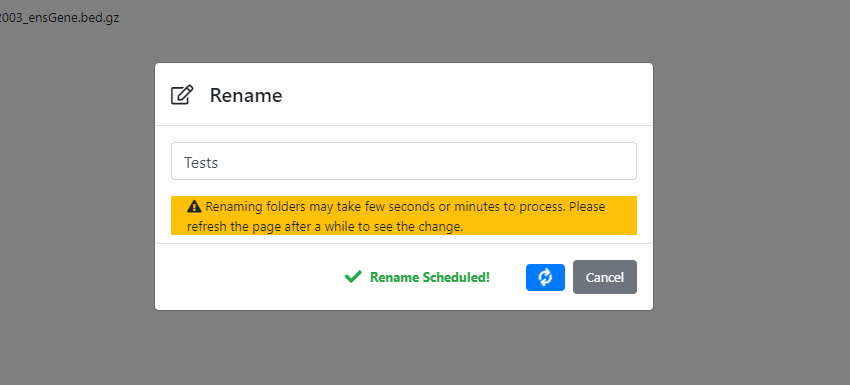
2) In the rename dialog-box, change title from "Rename..." to "Rename"
3) Fix the cryptic alert message ( "Sorry!...or contact admin") when Manage Link is opened and the old filename is still not replaced.
4) Fix loading spinner of Manage Link to turn off after the alert box has been dismissed
Attachments



Activity
Thoughts on improving the rename process:
When renaming a file/folder, public link works for the old name until the name has been changed in the database. Once the change happens the link returns a 404 error. We could check that periodically to see if the name has changed and add a "wait" icon to the file row. When the name is changed, the wait icon can change to a refresh icon that the use can click to refresh the page. Problem is if the user navigates away from the page. Need to look into that.
Thoughts on improving the rename process:
A crude method to work around the renaming delay
Step 1 - Add a rename list to the page cookie that looks like so:
{"rename":{
          "<directory_path_1>" :{
                                  "<file_uuid_1>": "<new_filename>",
                                  "<file_uuid_2>": "<new_filename>",
                                  "<file_uuid_3>": "<new_filename>"
                                 },
          "<directory_path_2>" : {
                                  "<file_uuid_1>": "<new_filename>",
                                  "<file_uuid_2>": "<new_filename>",
                                  "<file_uuid_3>": "<new_filename>"
                                 }
         }
}
Step 2 - (Pseudocode)
if currentdirctory = directory_path_in_list:
  for(uuid in list){
     if uuid_filename = new_filename:
       deletefromcookielist()
     else:
       add_wait_icon() // adds "wait" icon to the file row in the table
       gray_out_file_row() // disables the row
       disable_rightclick_popup() // disables rightclick menu
       click_on row_toast_popup() // clicks on the row, a toast appears with a "wait" message
}
Problems with this method -
1) It will take a long time to implement because whenever the user navigates through the application, the checking mechanism has to be triggered and the payoff for this change is very low
2) Adding the list to the browser cookie with file UUIDs does not seem like a good idea from a security standpoint but it would be necessary if the user navigates away from the current directory
For the logic in the previous comment, the problem of UUIDs (Problem 2) and security is not a concern as thought to be earlier. In the BioViz Connect directory table, file UUIDs are being used as the 'id' attribute for table rows. Moreover, a timeout can be included to expire the cookies. Cookies can also be emptied when the browser or browser tab is closed.
How to use Django sessions
Setting and getting values to and from redis cache is already being done in BioViz Connect backend during Move File & Folder, Create File & Folder, Signout and almost all error handling functions. Generally, the cookie sessionid is used as the key value for the data in the these cases. Therefore, to implement the renaming logic described in the previous comment, the key <sessionid>'_rename' is being used to save renamed files and folders names in the cache. in views.py, the function,"updateRenameList" does basic CRUD operations in the cache for <sessionid>'_rename'.
The logic for the cookie expiry on timeout has been implemented and the cookie expiry on browser close is yet to be included. The UI complications (Problem 1) still remains and requires thorough investigation before changes.
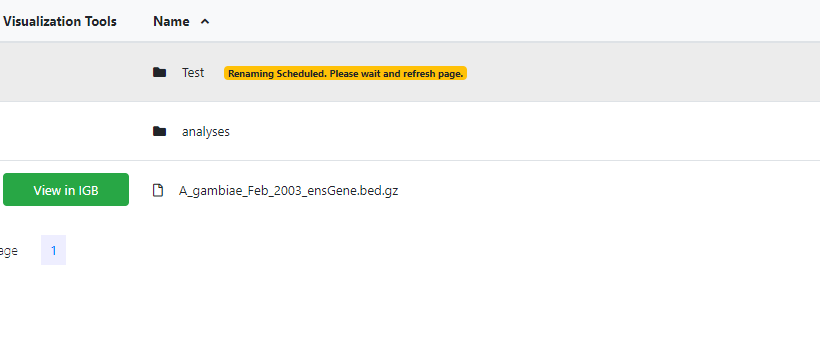
UI has been implemented (please see image, "Rename Badge"). When a user renames the file or folder,
a) A badge is added to the file/folder row to indicate that the file name is being changed and row is greyed out.
b) Clicking the badge refreshes the page.
c) Click events are unbound from the row.
See Commit
Note: Unbinding the event handlers from the row is important because if the user changes the name of a folder and then proceeds to change the name of a child file/folder, a duplicate of the original folder is created (along with its child files and folders) in the parent directory.
Re discussion today during the scrum: I got confused as to where the state data was being saved. I understand now it will be stored as a dictionary in the redis database, using a key string that includes the session identifier.
I have a question for Karthik Raveendran:
Can you explain here (in a comment) how this state data will be deleted? You mentioned something about an expiration today during the meeting, and that the data will only be stored temporarily in the redis database for five minutes, and then deleted. How will this be done?
While setting the Redis cache, I am setting a timeout on the key of the data, in this case the "[sessionId]_rename" key. My understanding of this is that when the key is read, the timeout is also read to see if the time is up. If the time is up, then the key is deleted. This is how I believe this is happening based on the link below.
Redis Expire
Nowlan Freese: notes that a lot of testing must be done. Karthik Raveendran will need to carefully and thoroughly define the testing protocol.
New code is deployed to bvctest7.bioviz.org. Ready for testing.
attn: Omkar Marne
Testing Protocol:
The testing may need a few iterations to notice any errors, if any.
- 1) Go to https://bvctest7.bioviz.org.
- 2) Create a folder and create folders within it and so on to create an elaborate directory system.
- 3) Add test files like .txt to these folders as many as needed.
- 4) Right-click on the parent folder and rename the folder. Look out for the following:
- a) The rename window should have a warning about the time taken to rename.
- b) Save changes button icon should change to loading icon on click.
- c) After click, the "Rename Scheduled!" should appear next to the button.
- d) The window should close after a few seconds.
- e) Once the window closes, the corressponding table row should be greyed out.
- f) A yellow badge should be appear next to the foldername that says, "Renaming Scheduled. Please wait and refresh page."
- g) Double-clicking the folder should be disabled.
- h) Right-clicking the folder/file should be disabled.
- i) Clicking on the badge refreshes the page.
Note: Upon testing please note in the comments if these things are working as its supposed to every time.
- 5) When the renaming process is happening nagivate away from the directory and come back and check if the badge is still there.
- 6) If it is, check if all the features in 4 works. If not, check if the file/folder name is the new one.
- 7) Special Case:
When the folder is in the renaming process, the double-click wont work. But if you- a) Open the folder first, b) Move back to the parent folder using the Breadcrumbs feature, c) and then rename the folder d)you can hit the back button to enter the folder again.
This should not effect the users ability to use the app by throwing an error. Please test if that's the case.
Please check in the above case if the Manage Link, Analyses and Metadata does not act differently. After 7)d), you might want to wait a few minutes before testing these, giving sufficient time for the parent folder name to change.
Test results after performing the testing protocol.
I created a parent folder and subfolders inside the parent folder and uploaded .txt files.
After right-clicking, I performed the below actions and their results were as per the testing protocol.
- The rename had a warning about the time taken to rename.
- Save changes button icon should change to loading icon on click.
- After the click, the "Rename Scheduled!" appeared next to the button.
- The window closed after a few seconds.
- Once the window closes, the corresponding table greyed out.
- A yellow badge had appeared next to the folder name. that says, "Renaming Scheduled. Please wait and refresh the page."
- Double-clicking the folder got disabled when badge appeared
- Right-clicking the folder/file got disabled when badge appeared
- Clicking on the badge refreshed the page.
- When the renaming process was happening I navigated away from the directory and came back and checked that the badge was still there.
Manage Link, Metadata, and Analyse option did not act differently during the process.
( Please see attached snapshots for the test results.)
Although, I have found a few bugs. I am not sure if they are related to the above testing protocol.
I followed the same steps for the subfolders but the behavior was different.
- A yellow badge did not appear next to the folder name that says, "Renaming Scheduled. Please wait and refresh the page."
- Rename was not successful after refreshing the page.
- Double click and right-click were unsuccessful during the renaming process.
Before moving this ticket back to to-do I need to check with Karthik Raveendran if the above behavior is expected.
Yellow badge not appearing is could be a problem but I was not able to replicate it. Rename not successful can happen. Double-click and right-click not working during the renaming process is meant to happen.
Karthik Raveendran Moving this ticket back to to-do.
Omkar Marne Showed me the issue. For some folders the rename UI features were not being imposed but the renaming was happening like before the changes made in this issues. This is because of special characters in the path name (like space). Correcting this fixes the issue.
There were two issues in the rename functionality. As mentioned in the earlier comment the the special characters in URI needed to be encoded. But after fixing that, I realized that the error handling in rename function was not effective if there is a value error. This poses a big problem because the user will be blocked from using the folder if the error is not handled well. So in the commit below the error has been handled as well.
[ Commit | https://bitbucket.org/nfreese/bioviz-connect/pull-requests/269/igbf-3023]
Karthik Raveendran Rename of the subfolders was successful and after the click, the "Rename Scheduled!" appeared next to the button but the yellow badge did not appear next to the folder name that says, "Renaming Scheduled. Please wait and refresh the page."
Please let me know if that's expected.
Dr. Ann Loraine Could you please run the playbooks to merge the Karthik's changes into bvctest7.
Test results after performing the testing protocol.
I created a parent folder and subfolders inside the parent folder and uploaded .txt files.
After right-clicking, I performed the below actions and their results were as per the testing protocol.
- The rename had a warning about the time taken to rename.
- Save changes button icon should change to loading icon on click.
- After the click, the "Rename Scheduled!" appeared next to the button.
- The window closed after a few seconds.
- Once the window closes, the corresponding table greyed out.
- A yellow badge had appeared next to the folder name. that says, "Renaming Scheduled. Please wait and refresh the page."
- Double-clicking the folder got disabled when badge appeared
- Right-clicking the folder/file got disabled when badge appeared
- Clicking on the badge refreshed the page.
- When the renaming process was happening I navigated away from the directory and came back and checked that the badge was still there.
I was able to perform on subfolders too and they behave as expected.
Closing the ticket.
Changes made so far:
1) Rename title has been changed
2) In the rename pop-up modal window, the delay warning can be seen during both file or folder renaming process (not just folder renaming)
3) A 5sec delay is added before the modal window is closed and bvc page is refreshed. This works for file renames but folder renames need more time as indicated by the warning
4) When the rename requested and the response is 200 OK, in the modal window next to the "Save Changes" button a message appears that says "Rename Scheduled! " with a 'tick' icon. This is consistent with delete function.
5) The cryptic message in the alert message existed in many alert messages throughout the application. All the messages are modified.
Commit