Details
-
Type:
Task
-
Status: Closed (View Workflow)
-
Priority:
 Major
Major
-
Resolution: Done
-
Affects Version/s: None
-
Fix Version/s: None
-
Labels:None
-
Story Points:3
-
Epic Link:
-
Sprint:Summer 5: 3 Aug - 14 Aug, Summer 6: 17 Aug - 28 Aug, Summer 7: 31 Aug - 11 Sep, Fall 1: 14 Sep - 25 Sep, Fall 2: 28 Sep - 9 Oct, Winter 3 Jan 25 - Feb 5, Winter 4 Feb 8 - Feb 19, Winter 5 Feb 22 - Mar 5, Spring 3 2021 Apr 19 - Apr 30, Summer 1 2023 May 15, Fall 3 2023 Oct 2, Fall 4, Fall 5, Fall 6
Description
Welcome to your first on-boarding task for the IGB core development team!
We are super excited you have joined us! We hope you will enjoy your time with us and will make big contributions to the code base and the IGB community.
For the next steps, please do the following tasks to get familiar with IGB and how it is used.
Note that this issue has 3 story points.
A "story point" is an estimate for how long a task ought to take. One day is roughly equal to one story point.
This means you should expect to spend about three working days on this "on-boarding" task. Take your time on this task and explore the IGB interface to better understand how it works.
Reading:
IGB on-line canvas course:
- Enroll in https://canvas.instructure.com/courses/1164217
- In Module I of the course, read: IGB Background and Intro to IGB Data Visualization
IGB documentation:
- Visit the IGB user's guide and get familiar with all the contents: https://wiki.bioviz.org/confluence/display/igbman/Home
- Visit the IGB Release Documentation guide, which we use for testing new released. Get familiar with the contents: https://wiki.bioviz.org/confluence/display/ITD/How+to+test+-+read+this+first
- Visit the IGB Developers guide and get familiar with the contents: https://wiki.bioviz.org/confluence/display/igbdevelopers/Developing+Integrated+Genome+Browser
Get started using IGB:
- Download and install the current release of IGB onto your computer from https://bioviz.org/
- Click the “install IGB” button in the top right. (The appropriate version for your operating system should be supplied for you.)
- Click the button to download IGB for your computer
- Run the downloaded file
- Follow the instructions in the setup wizard.
- Open and run the Integrated Genome Browser software.
- The IGB Quickstart webpage will open automatically in your web browser.
- IGB may take several seconds to launch.
- Using IGB, follow along and copy the actions shown in this video: https://www.youtube.com/watch?v=LjPNT1k9cqk
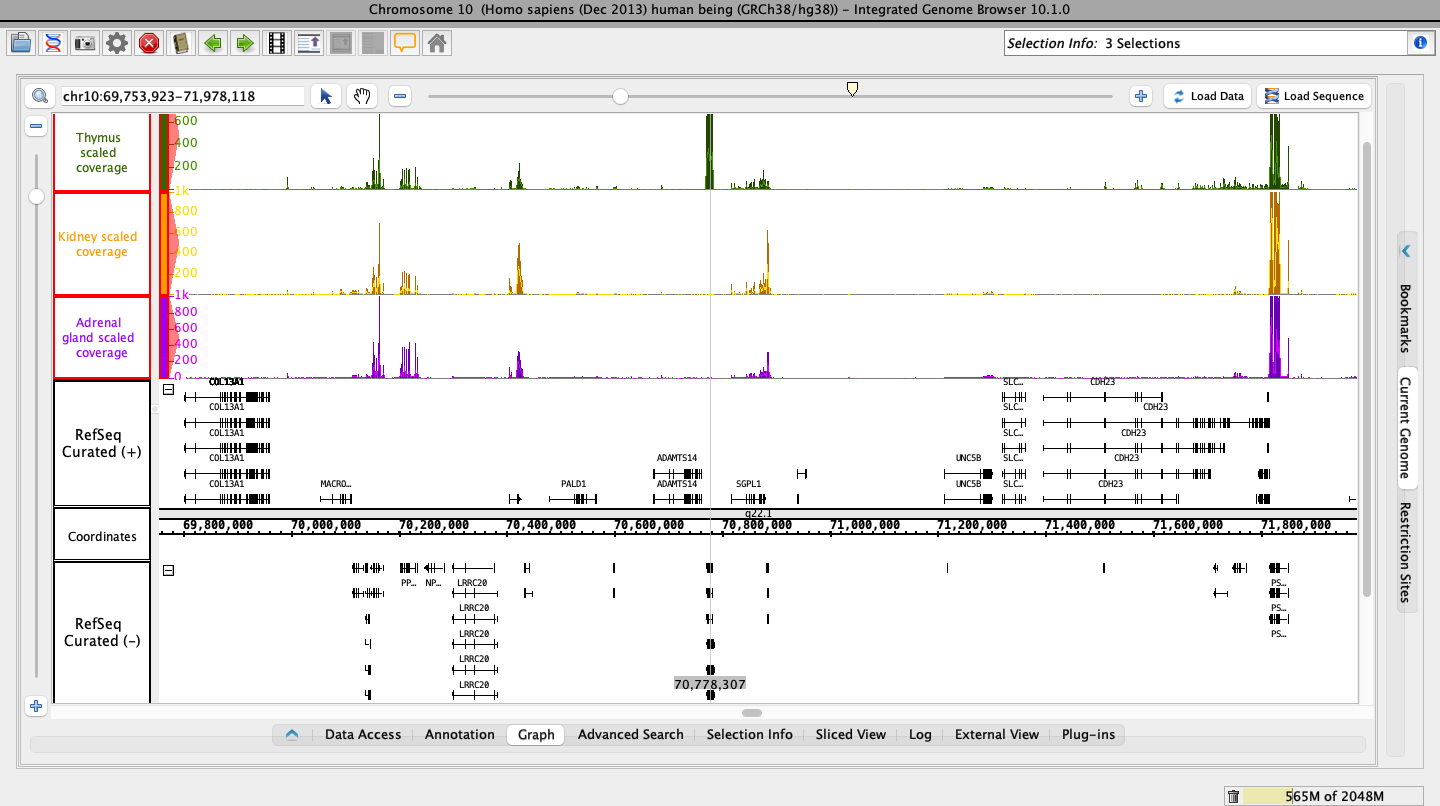
- Re-create the scene shown at the very end of the video.
- Then use the camera icon button in the IGB toolbar at the top, or go to File > Save Image to take a picture of IGB showing the scene at the end of the video;
- Upload that image here as an attachment (you can use the plus icon to the right of Attachments).
- Move the ticket to Needs 1st Level Review by clicking the Workflow dropdown button at the top (under the ticket name), and select Request Review. You could also drag the ticket over to the right one space from the Agile board > IGB > Work view.
- Since this might be the first ticket you do, and it needs to be completed before you move on to On-Boarding: Step 1 (Step 0 is a blocker for Step 1): Reach out to another developer here to review your ticket with you before you move on.
Reviewers:
- Watch https://www.youtube.com/watch?v=LjPNT1k9cqk
- Confirm that the assignee has uploaded an image with graphs loaded and configured to the same scale as each other, as shown in the video
- Confirm that the assignee has enrolled in the class. To do this select the People tab and look for the student’s name in the list.
Attachments
Issue Links
- clones
-
-
- Closed
-
Activity
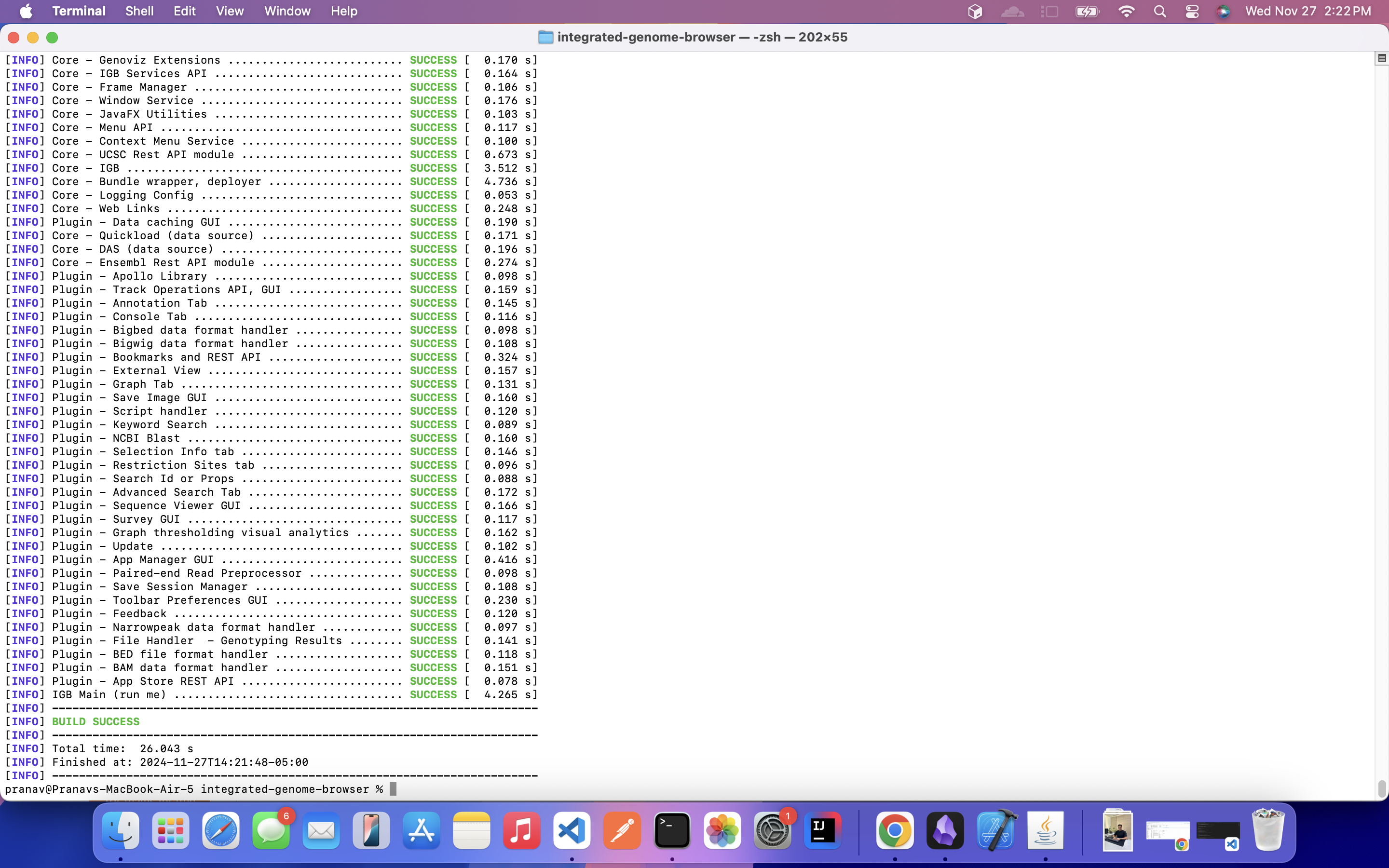
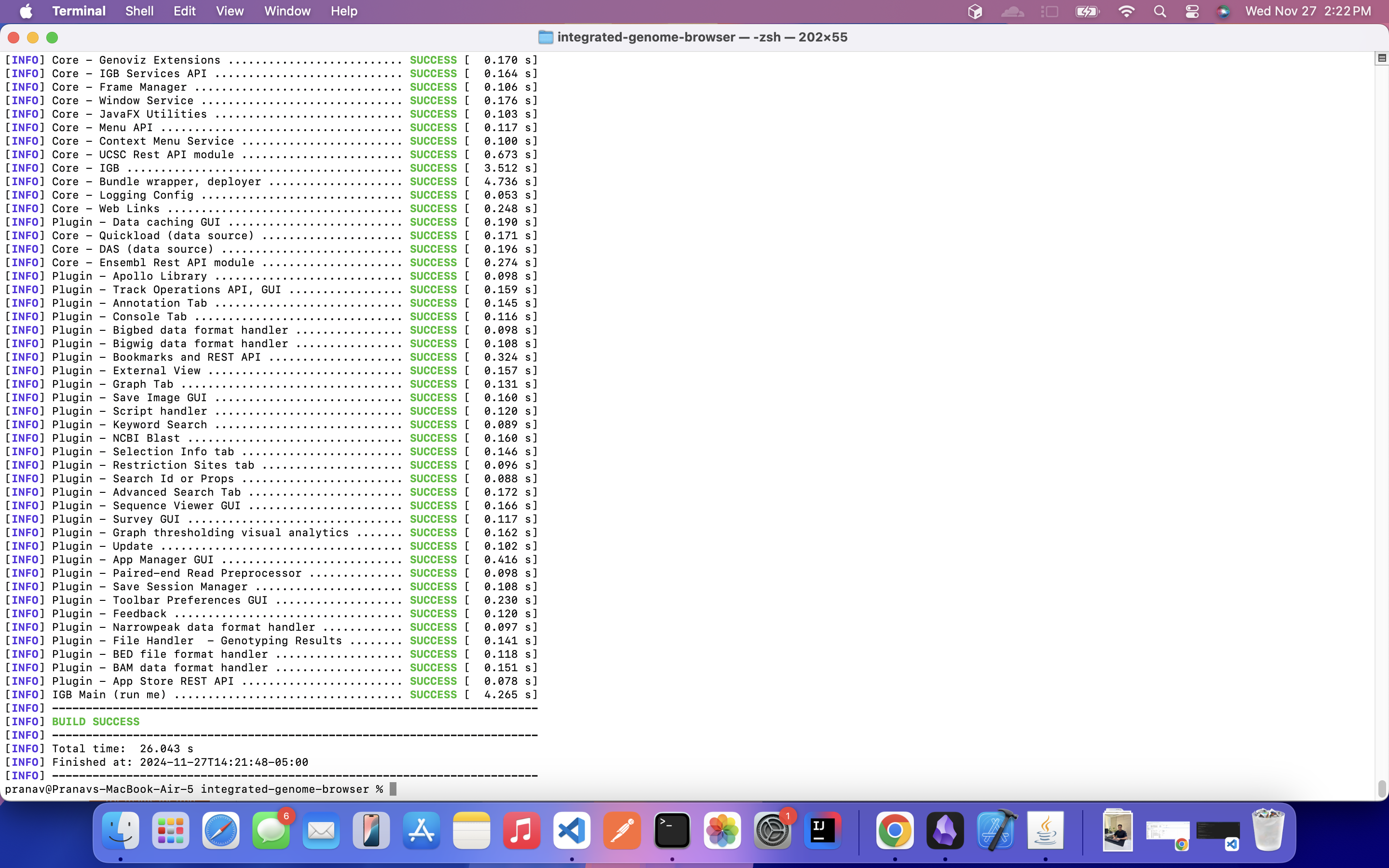
screenshot indicating a successful build. -
Review :
- Verified the image uploaded by Pranav Bhatia, it includes graphs and the scales aligns with the youtube video.
- Pranav Bhatia is enrolled in the canvas course.
Moving to done.
A. Successfully enrolled to IGB 100 (Open source programming with IGB) and completed Module 1
B. Read IGB documentation -
1. About IGB
2. How to test
3. IGB Developers guide
C. Successfully downloaded and installed IGB on my local machine and followed the YouTube Video to understand IGB better.
Attached is the screenshot of the graph that I got in the end of the video.
D. Local environment setup completed -
Below is the screenshot attached indicating a successful build. -